
Welcome to residence!
Moving into residence can feel overwhelming, especially if it’s your first time. To help you prepare, we’ve developed some next steps for you to follow to make sure you’re ready for move-in.
Complete the Before you Arrive Module
The Before you Arrive Module covers all of the important information you need when getting ready for residence. This includes selecting your meal plan (if applicable) and booking your move-in date and time. This module is mandatory prior to you moving in.
The Before you Arrive Module is available beginning in early July and you will be notified by email to your Dal email when it is ready to complete.
Need more help? Watch our video!
Submit your DalCard Photo
Residents will pick up their DalCard when they check in at their residence building.
All new students must upload a photo for use on their DalCard, following some photo guidelines outlined on the DalCard site.
To ensure your DalCard is ready when you arrive, check the Important dates page to make sure you upload before the deadline.
To upload your photo, you will first need your NetID. Online photo submission for the Fall semester launches in late June. You will be notified by email once it's available.
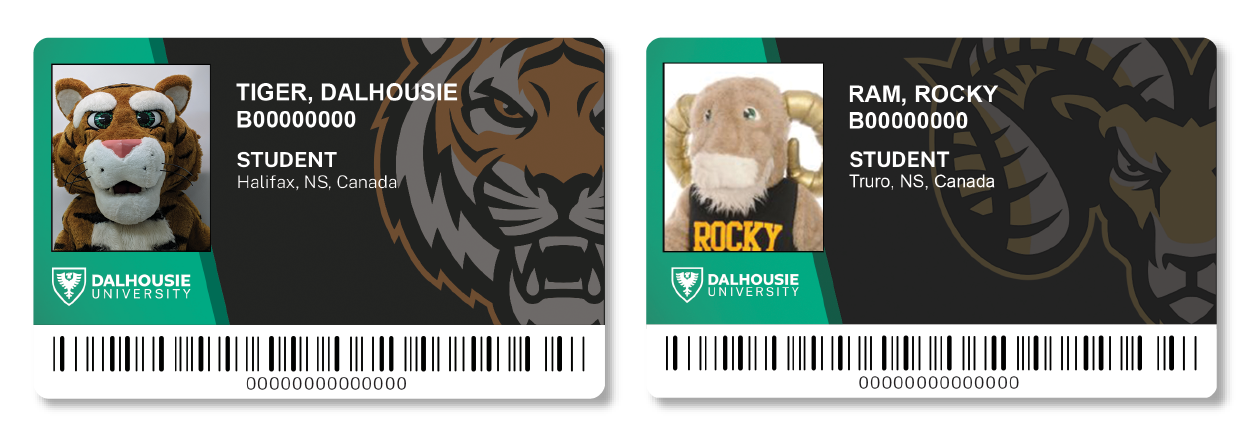
Your DalCard is your key for door access, your student ID, a debit card for on-campus purchases and 5% back on select purchases, and much more.
Set your DalCard PIN
To use your DalCard for door access at your residence, you need to set a PIN number. This is easy and only takes a few minutes.
Note: you will first need your DalCard account to be active in the system and you will need your NetID to log in. We suggest waiting until the release of the Before you Arrive module in July.
Note: PIN not required for Truro residences.
Register for your courses
Now that you have a place to live, make sure you decide what to study and register for your courses! Before we can print your DalCard, you’ll need to be registered for at least one course.