Submit your DalCard photo online!
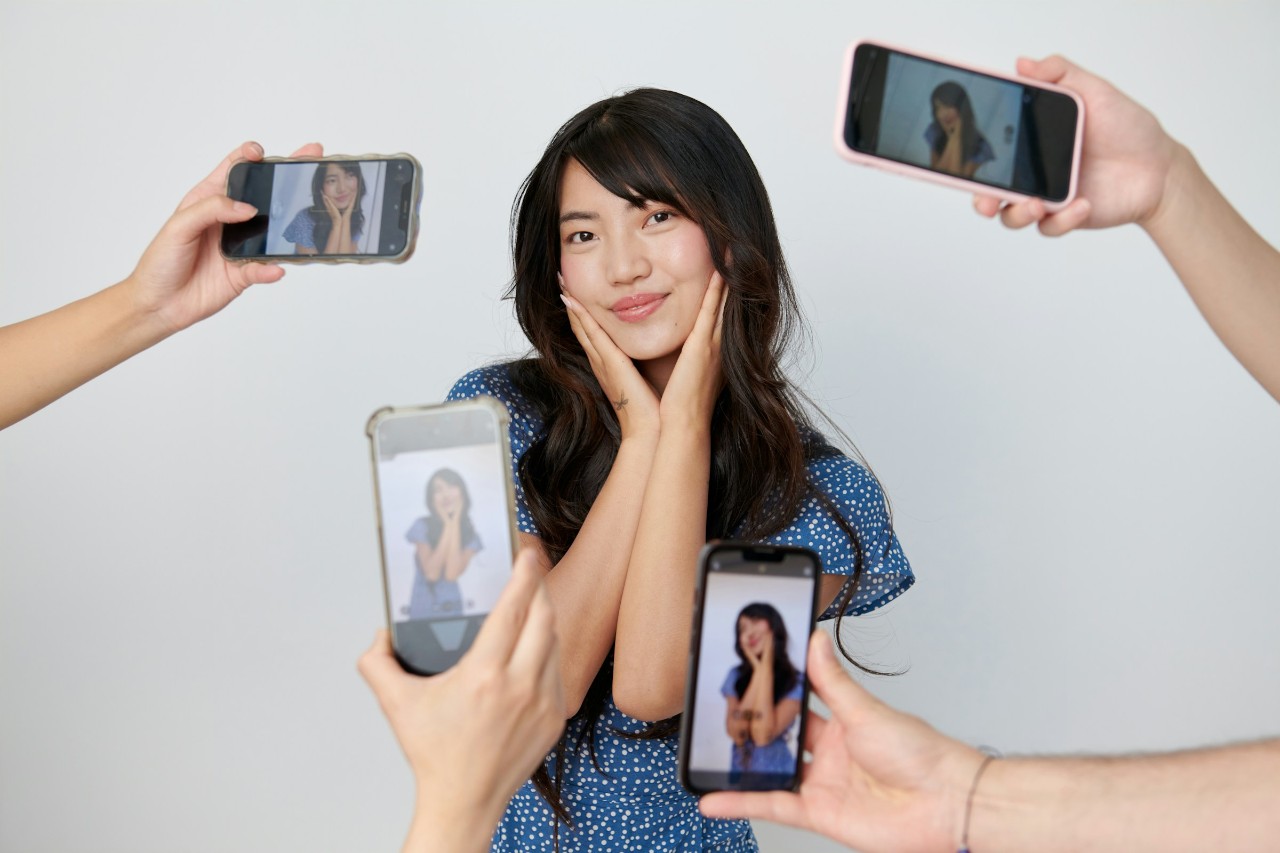
Are you a new student? Follow the guidelines below and upload your DalCard photo online to have your card waiting for you when you arrive on campus!
The service is secure and easy to use. Just log in with your NetID and password. If you are having difficulty, email us at dalcard@dal.ca for assistance.
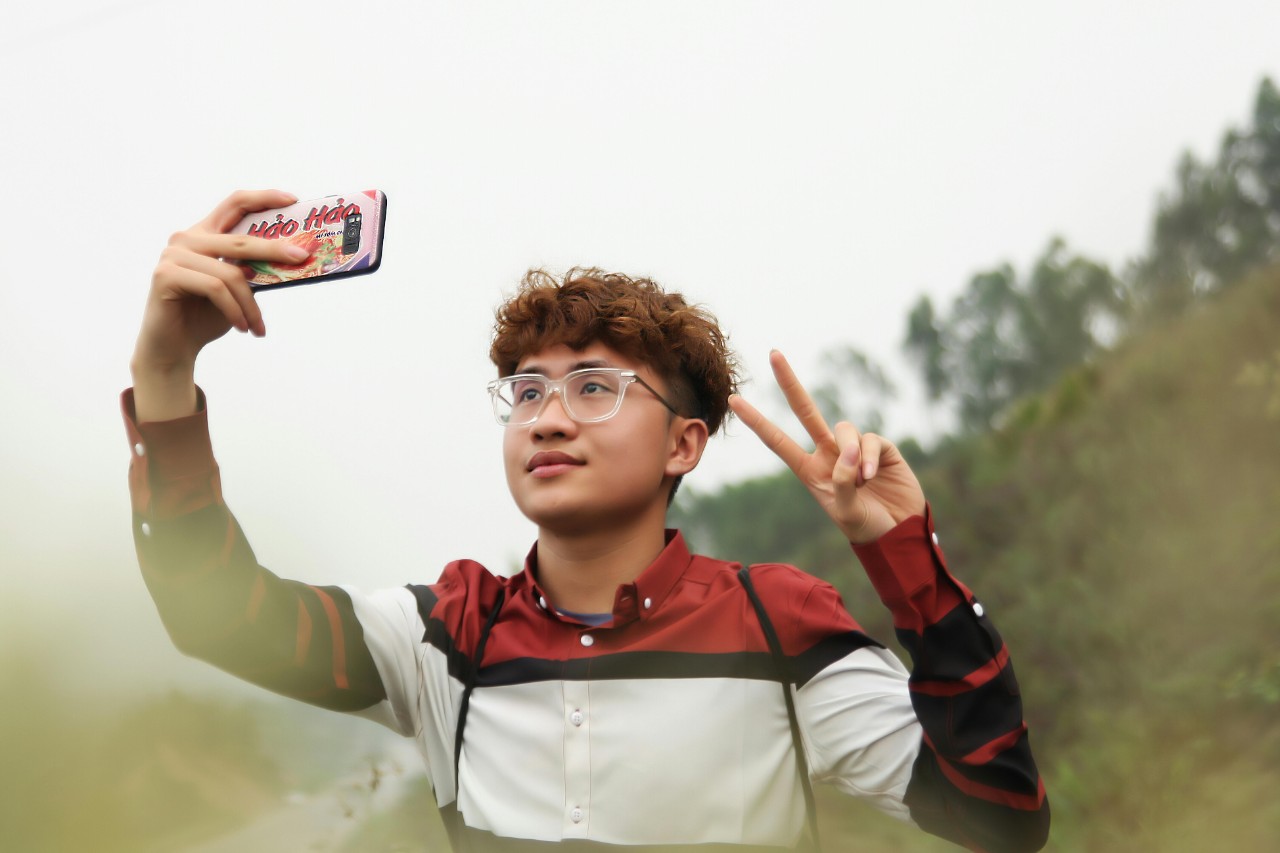
Photo guidelines
Prepare your DalCard photo for upload following these guidelines:
- Photo should be of head and shoulders, not a zoomed out full-body photo
- Full colour image in normal tones -- no black & white, sepia or filters
- Facing the camera with a neutral expression or a smile
- Plain, light-coloured, neutral background
- No accessories (hats, sunglasses, sweatbands, etc.)
- You must be the only person in the frame -- no group shots or pets
- Leave space above your head, below your chin, and on both sides of your face
Tip: Your visa or passport photo should fit all these requirements, so upload something similar!
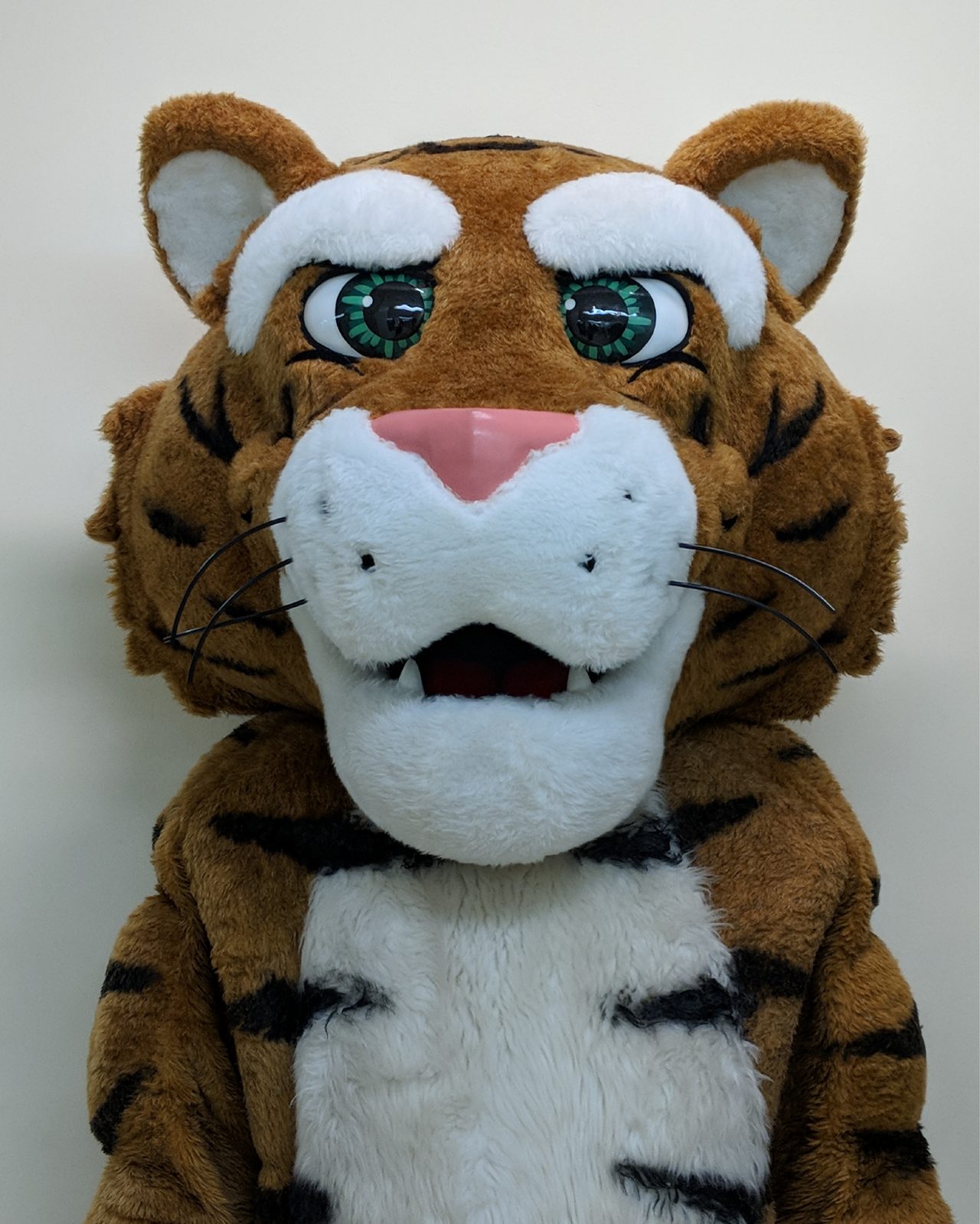
Example of an acceptable photo

Hair coverings worn for medical or religious reasons are allowed but your full face must be visible in your DalCard photo. Individuals must also present valid government-issued photo documentation with full face visible (religious hair covering is okay).
Individuals who wear a face covering who prefer to have their full-face photo taken and documentation validated privately by a staff person the student feels comfortable with, can email the DalCard Office (dalcard@dal.ca) to make this request.

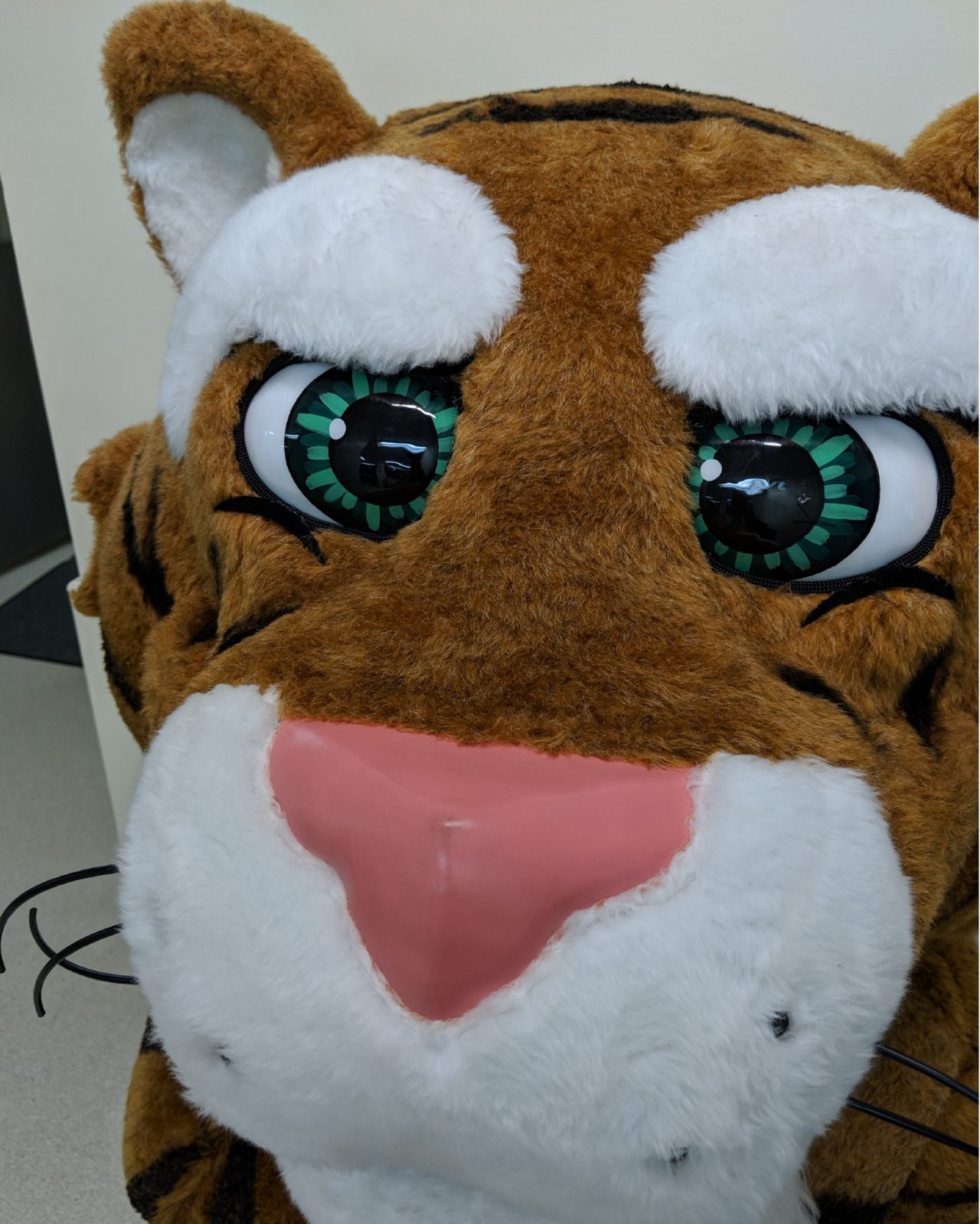
Not showing full face


Not looking at camera


Too many colour filters

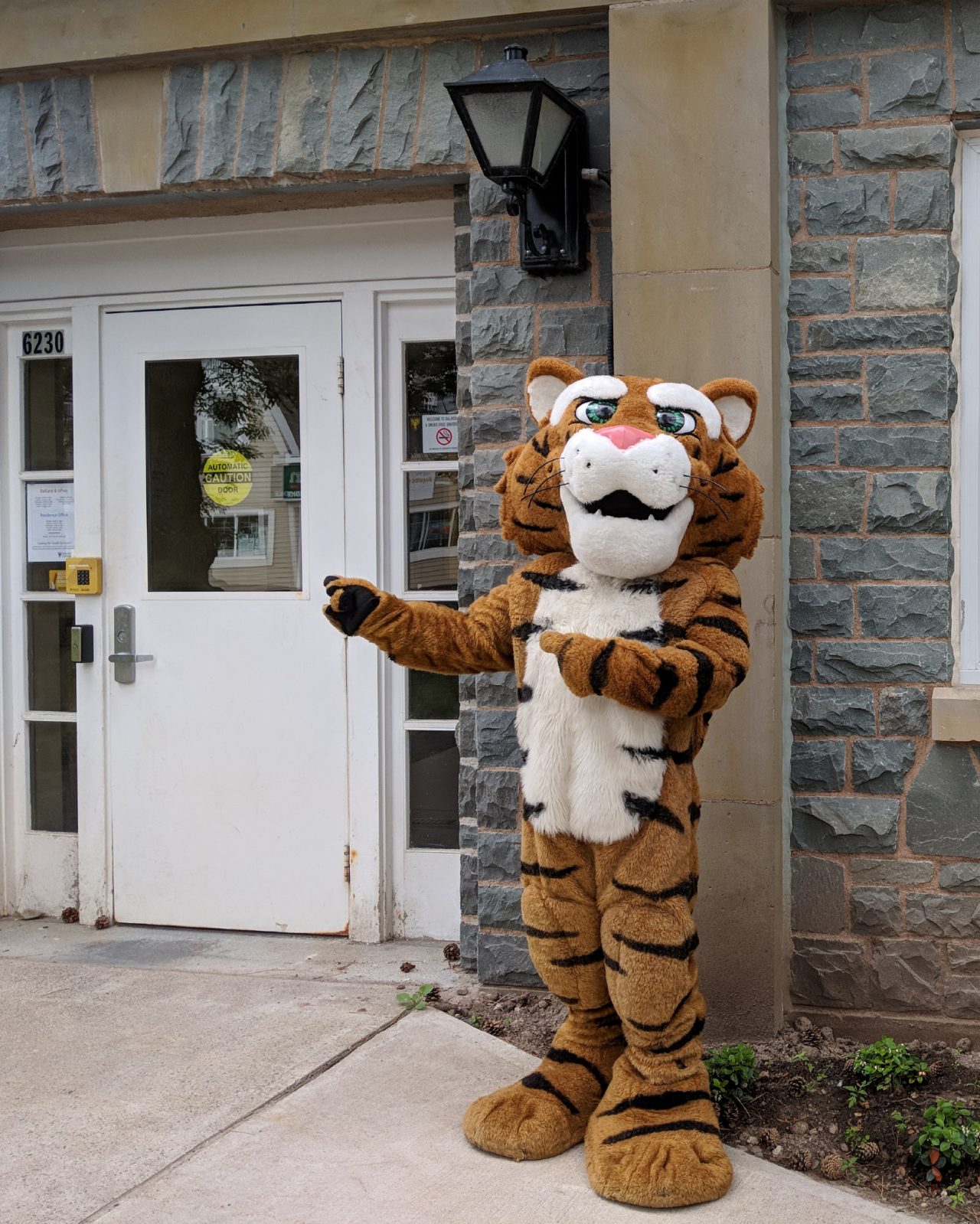
Full-body photo, not just head and shoulders


More than one person in photo

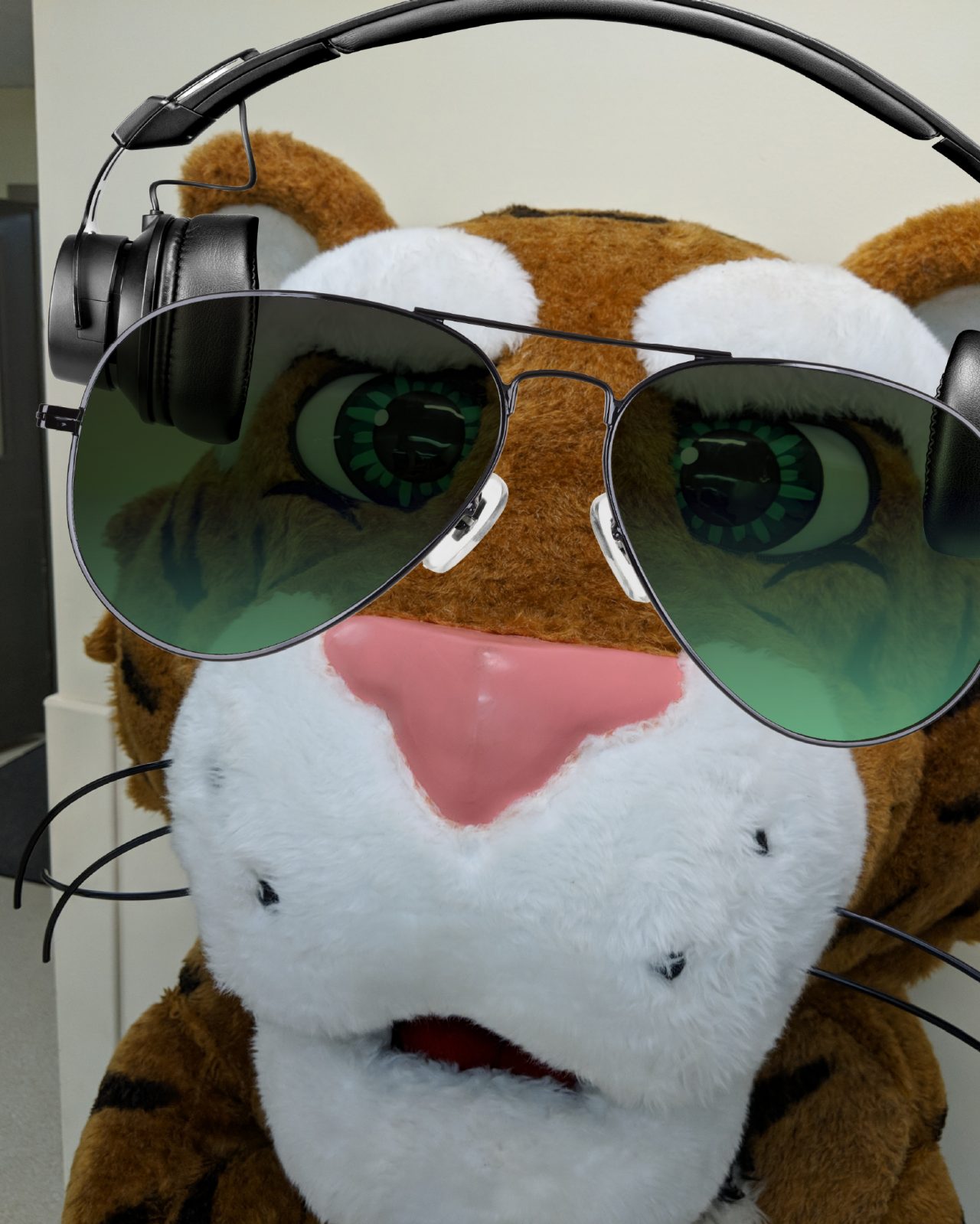
Wearing sunglasses and headphones

Next steps
Upload your government-issued photo ID
Upload your government-issued photo ID with your photo. See our terms and conditions for details.
Picking up your DalCard
Check your Dal email for next steps. See the Get your DalCard page for more details.
Follow DalCard on Instagram for further updates on this and other information about your DalCard.
Troubleshooting
Who is eligible to upload their photo online?
Only new-to-Dalhousie students/staff/faculty can utilize the online photo submission tool. Returning persons must request their photo be replaced by emailing the DalCard office with a new electronic photo at dalcard@dal.ca.
The upload tool is not working for me. How can I fix it?
- Ensure you're using the correct link: (https://dalcard-photo.dalcard.dal.ca)
- Log in without the "@dal.ca" portion of your NetID.
- Try submitting a different photo or a screenshot of the intended photo.
- Experiment with a different web browser (e.g. Chrome, Firefox, Internet Explorer).
- Use an alternative device (another computer, tablet, or phone).
- Clear your browser history.
- Add dal.ca to your safe sites (Internet options > security > trusted sites > add dal.ca).